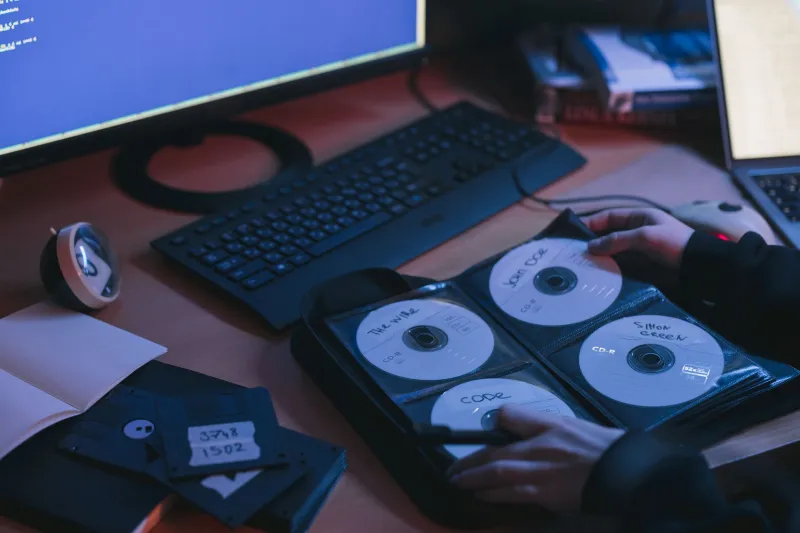
Stop Living in Digital Chaos: A Real Person's Guide to Merging Years of Scattered Files Into One System That Actually Holds
Let's be honest. Somewhere out there, you have a folder called "New Folder (3)" that contains a subfolder called "Final_FINAL_v2_USE THIS ONE" and nobody — not even you — knows what's inside it. You've got photos from 2017 living on a cracked Samsung Galaxy, a Google Drive account you stopped paying for, and an external hard drive that makes a clicking sound when you plug it in. Sound familiar?
The idea of consolidating all of that into one clean, unified system sounds exhausting. And honestly? It kind of is. But the people who've actually done it say the same thing on the other side: it was worth every miserable hour.
This guide is about how to get there — the mechanics, the mindset, and the traps that'll send you right back to square one if you're not careful.
First, Figure Out What You're Actually Dealing With
Before you move a single file, you need a full inventory of where your stuff lives. This sounds obvious, but most people skip it and then discover three months later that they left an entire archive on a Dropbox account they forgot existed.
Make a list. Literally write it down — every device, every cloud service, every drive. Common culprits:
- Old laptops sitting in closets
- Google Drive, iCloud, OneDrive, Dropbox (possibly all four)
- External HDDs and SSDs
- USB flash drives scattered around your home office
- Old phones you haven't wiped
- Email attachments you've been using as informal storage (you know who you are)
- That one shared family computer from 2009
Once you've got the list, estimate the total storage volume. This matters because it determines whether you're dealing with a weekend project or something that needs a more phased approach. If you're sitting on 2TB of scattered data, you're not finishing this in an afternoon.
Pick Your Landing Zone Before You Move Anything
Here's where a lot of consolidation attempts collapse early: people start moving files before they've decided where files are going. You end up with a destination folder that becomes just as chaotic as the sources you were pulling from.
Your landing zone should be decided before the migration starts. Options typically fall into three buckets:
Local-first: A NAS (network-attached storage) device, a large external drive, or a dedicated folder structure on your main machine. Good if you want control and don't want to pay monthly fees forever.
Cloud-first: Pick one cloud service — just one — and commit to it. Syncing across Google Drive, iCloud, and OneDrive simultaneously is how you end up with three slightly different versions of the same document and no idea which one is current.
Hybrid: Local primary storage with cloud backup. This is what most digital archivists and power users recommend. Your main copies live on hardware you control; the cloud is the safety net, not the filing cabinet.
Whatever you pick, design the folder structure first. A simple, flat hierarchy beats a deeply nested one every time. Think broad categories — Work, Personal, Media, Archives — with year-based subfolders where it makes sense. Don't over-engineer it. The more complex the system, the less likely you are to maintain it six months from now.
The Actual Migration: Go Slow, Go Deliberate
Migrating files is not just dragging and dropping. If you do it that way, you'll create duplicates, lose context, and probably overwrite something important.
Here's a process that actually works:
1. Deduplicate before you move. Tools like dupeGuru (free, cross-platform) or Gemini 2 (Mac) will scan your sources and flag identical files. Resolve duplicates at the source before anything touches your destination.
2. Move one source at a time. Don't try to pull from your old laptop, your Dropbox, and your external drive simultaneously. Finish one source completely, verify it, then move to the next.
3. Use a staging folder. Create a temporary "Inbox" folder in your destination. Everything lands there first. Then you sort it into your actual folder structure deliberately, not in a rush.
4. Verify before deleting the source. This sounds paranoid, but don't wipe a source drive until you've confirmed the files exist and are accessible in the new location. Wait at least a week before nuking the original.
Why These Systems Fall Apart (And How to Not Let That Happen)
Talk to anyone who's done a big file migration and they'll tell you the same thing: the hard part isn't the initial consolidation. It's staying consolidated.
The most common failure mode is what you might call the "second pile" problem. You build a beautiful unified system, and then six months later you've got a second pile of new files sitting outside the system because it felt like too much friction to file them properly in the moment. Then the pile grows. Then you've got two systems again.
The fix is making the system easier to use than not using it. That means:
- Keep an "Inbox" folder permanently, as a first stop for anything new
- Do a 15-minute weekly sort — don't let the inbox accumulate for months
- Name files descriptively at the point of creation, not later
- Resist the urge to create new subfolders for every little thing
Marcos, a FileChan community member from Austin who shared his migration story in our forums, put it this way: "I spent two weeks doing the big consolidation, felt amazing about it, and then completely ignored the system for four months because I told myself I'd 'deal with it later.' The inbox was the thing that saved me. Having one designated drop zone meant I could be lazy in the moment and still not lose the thread."
Don't Let Perfect Be the Enemy of Done
You will not perfectly categorize every file. You will find folders with names that make no sense. You will discover photos from 2011 that you have no memory of taking and no idea where to put them. That's fine. Make a "Miscellaneous" or "Unsorted" folder, throw the ambiguous stuff in there, and keep moving. You can always revisit it.
The goal of a migration isn't a perfect archive. It's a functional one — a single place you can actually search, a system you can actually maintain, and the peace of mind that comes from knowing your stuff isn't slowly dying on a forgotten hard drive in a closet somewhere.
Get the files in one place. Build a structure you can live with. Keep the inbox habit. That's it. Everything else is refinement you can do later.
Now go find that USB stick.